A STILL IMAGE. A NEW MOVEMENT.

AI Image to
Video Generator

Bring your photos to life with AI. Turn portraits, product shots and everyday scenes into short videos—without filming or learning complex editing software.

6–30-second clips · 480p or 720p

One-time credit packs from $9.90
Pay once for credits. No subscription needed. Sign-in required to generate.

YOUR STARTING FRAME
One image · JPG, PNG, WebP · Up to 8 MB0/2000
Starting image

The image is center-cropped to 16:9. The preview shows the frame sent for generation.

Try a motion
Estimated: 20 creditsFinal settings and cost confirmed in studio.

Use an image you have permission to animate. Generation processes your upload in the cloud. Privacy

Removes saved draft images and prompts in this browser. Cloud uploads and account history are separate. Data handling

ONE IMAGE TO STARTDESCRIBE THE MOTIONPREVIEW & DOWNLOAD

MAKE MORE WITH YOUR PHOTOS

One photo. More ways to tell your story.

Give existing images a new role in social posts, product stories and website visuals. Add a gentle gesture, a camera move or movement within the scene, then download a clip to use on its own or in your next edit.

Only need a pan or zoom? Choose the right workflow. Need an unchanged product or label? Use separate layers in your editor.

PHOTOS WITH A NEW STORY

See an AI-generated scene in motion

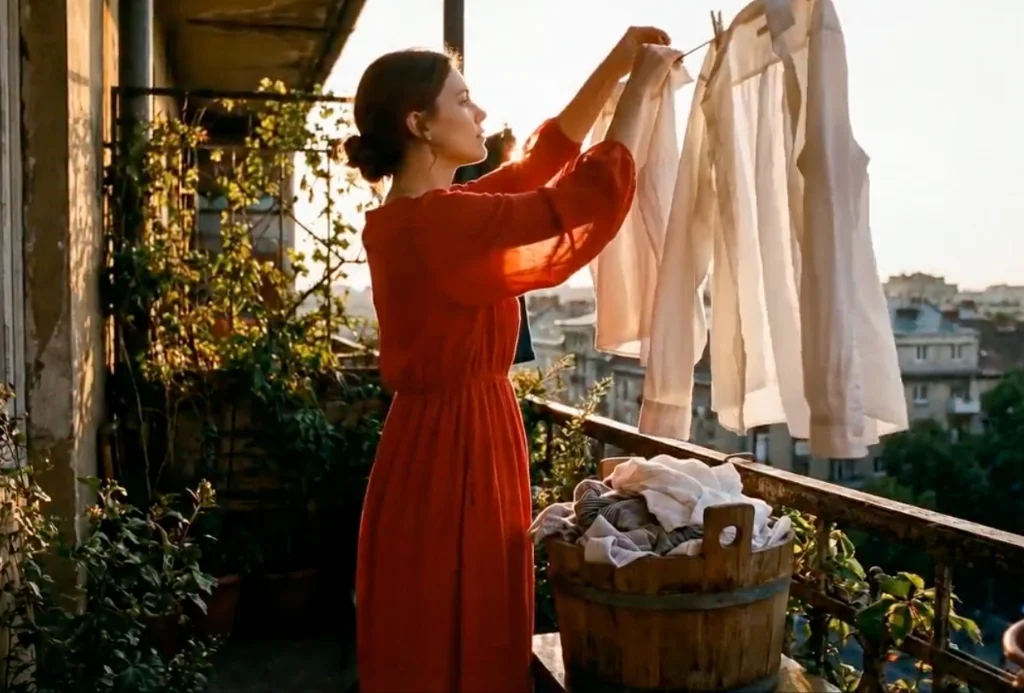
A warm balcony scene becomes a short clip with moving fabric and everyday action. Watch this creator-provided AI example, then try the motion prompt with your own image.

01 / EVERYDAY MOTION

A breeze through a sunset balcony

AI-generated example
01Scene reference
A woman in a red dress hanging white shirts on a sunlit balcony, with a laundry basket and city buildings behind her
The scene, subject and warm sunset palette.
02AI-generated video8s · 1280 × 720
MP4 · No audio track · Play to review the full clip.

THE MOTION PROMPT

Close-up tracking shot of a woman in a red dress hanging wet white shirts on a balcony clothesline during a warm sunset golden hour, laundry basket on a stool, gentle breeze blowing, city skyline in the background, highly detailed.

Prompt saved with this example in the project library.

What the clip shows

The woman handles the white laundry while fabric moves in the breeze. The red dress, basket and warm balcony setting remain visible as the scene moves.

Framing and detail

Watch her fingers as they meet the fabric, the shape of the shirts and the railings. The clip has a wider frame than the still image, so the crop is not an exact match.

FROM STILL TO MOVING

How to turn an image into a video

From a photo to a downloadable clip in three steps. Everything happens in your browser.

  1. 01

    Upload one image

    Choose a photo or illustration with a clear subject. Use an image you own or have permission to animate.

  2. 02

    Describe the motion

    Say what should move and how the camera should behave. Choose your ratio, resolution and duration, then continue to the studio to sign in and review the credit cost.

  3. 03

    Generate and review

    Your request runs in the cloud. When it is ready, preview your video and download it from the studio. Add captions, music or your call to action in your favorite editor.

Read the image-to-video guide ↗

SETTINGS & BUDGET

Make short videos.
Skip the subscription.

Choose the length, resolution and framing for your clip. The studio confirms the available settings and credit quote before you submit.

Buy a one-time credit pack when you need it, with no automatic renewal. See the credit cost before you generate, and choose a short draft when you want to explore an idea.

Compare request budgets and plans ↗
At a glance IMAGE TO VIDEO
Input
One image · JPG, PNG or WebP · Up to 8 MB
Model
Grok Imagine via KIE · Cloud processing
Account
Sign-in required to generate
Settings
6–30 seconds · 480p or 720p
Ratios: 16:9, 9:16, 1:1, 4:3, 3:4, 21:9
Cost example
Grok Imagine · 6 seconds · 720p
20 credits per request
$0.66 allocated from a $9.90 pack. Minimum purchase: $9.90.
New attempts
Each new generation uses credits. Preview your clip and refine the prompt when you want a different result.
Open the studio to check available settings ↗

A PLACE TO START

Start with a motion idea

Describe movement rather than everything already visible in the image. Choose one action and keep the rest simple. These are suggested starting prompts.

Subject action+Camera movement+What stays still
01Product

Give a product photo a slow push-in

Slowly move the camera closer to the product. Keep the product still and keep the label visible.

Check labels, logos and edges. For an unchanged product, use a separate product layer in your editor.

02Portrait

Start with a blink in a portrait

The person blinks gently. Keep the head, expression and camera still.

Watch the eyes, mouth and face shape from start to finish. A blink does not require a head turn or a changing expression.

03Landscape

Add a slow pan to a landscape

Slowly pan the camera to the right across the scene. Keep the buildings and horizon stable.

Check the horizon, buildings and framing. Reduce the pan if important parts of the scene leave the frame.

Finish your clip for your next post

Preview the full video, then add captions, music and brand graphics in your editor. For portraits and product shots, check faces, outlines and lettering before publishing.

Get tips for reviewing and finishing your video ↗

Before you upload

Use images you own or have permission to use. Review how uploads are handled and the conditions that apply to your videos.

Privacy policy ↗Terms of use ↗

QUESTIONS, ANSWERED

AI image to
video questions

Check current pricing ↗
How do I turn a photo into a video with Frovimo?

Upload an image, describe one movement and choose your settings. Continue to the studio, sign in and review the credit quote. Generate, preview the full clip and download the returned file. Follow the step-by-step guide ↗

Is Frovimo free, or can I use it without signing in?

Generation requires an account and enough credits. The minimum current request uses 10 credits; the 4 welcome credits do not cover a video. You can prepare your image and prompt before signing in. Check pricing ↗

Can I pay once without a subscription?

Yes. One-time packs start at $9.90 for 300 credits and do not renew. A 6-second, 720p request uses 20 credits. You purchase a pack, not a separately priced clip. Each new attempt spends credits. Recurring plans are optional. Compare request budgets ↗

How do I guide the movement in my video?

Describe what the subject does, how the camera moves and what should stay still. Start with one clear action, such as a gentle blink or slow camera push-in. Prompts guide AI motion; faces, logos and text can change, so preview the full clip. Use an editor when exact graphics or fixed image regions are essential. Check controls and editing workflows ↗

Can I use my video in social posts and add music?

Frovimo lets you download the completed video from the studio or History and adds no site watermark; input or provider marks can remain. Choose 9:16 for vertical posts, 1:1 for square or 16:9 for landscape. Add music, a voiceover and captions in an editor, and make sure you have rights to the material you publish. Download and finish your clip ↗

Where is my photo processed, and can I clear it?

Generation sends images and prompts to external cloud services. Clear draft from this device removes browser draft images and prompts; it does not delete cloud requests, provider copies or account history. Results are not automatically published in a public gallery. Upload only material you have permission to process. Review storage and deletion requests ↗

YOUR IMAGE IS THE START

Give your photo a new story

Upload a portrait, product shot or scene. Tell Frovimo how you want it to move.

Upload an image ↗Sign-in and credits are required to generate.